-1.png?width=300&height=50&name=Phonovation%20Logo%20(1)-1.png)
1. Access Profile and Preferences
Click on the profile menu in the top right corner of the screen.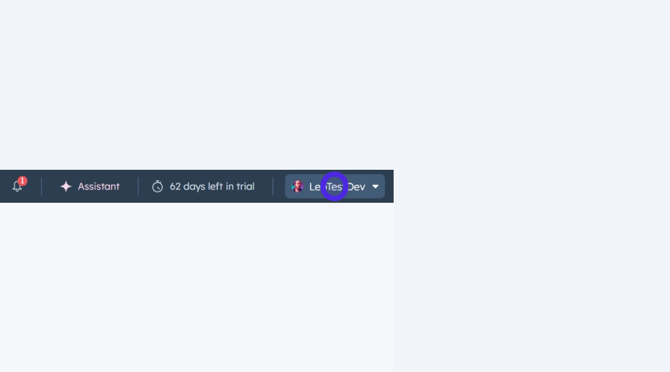
2. Navigate to Record Customisation Settings
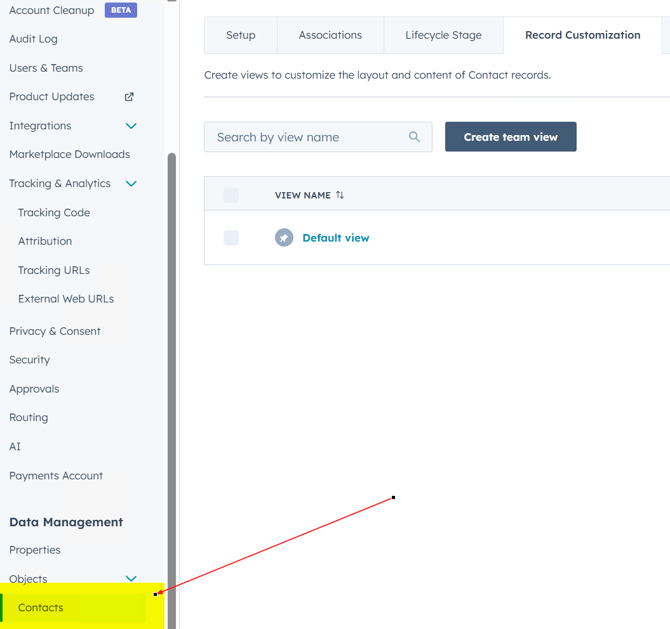
From the profile menu, click on Profile & Preferences, then navigate to the Objects section and select Contacts. Finally, select the Record Customisation tab.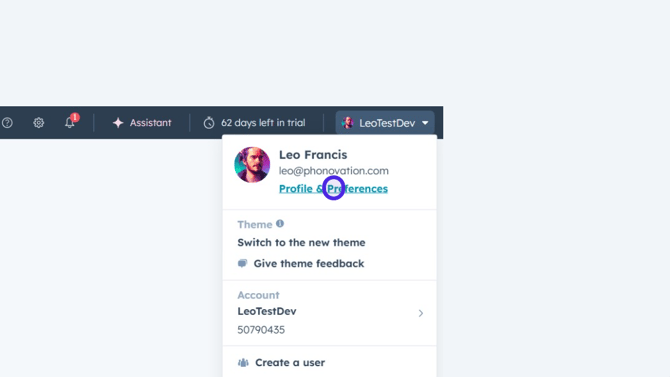
3. Select Record Customisation Tab
Ensure the Record Customisation tab is selected within the Contact settings to view options for customising the contact record layout.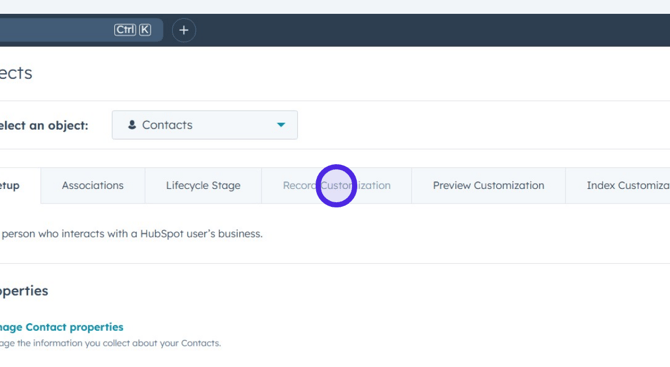
4. Edit Default View Layout
Click on the Default view entry to begin editing the layout for the default contact record view.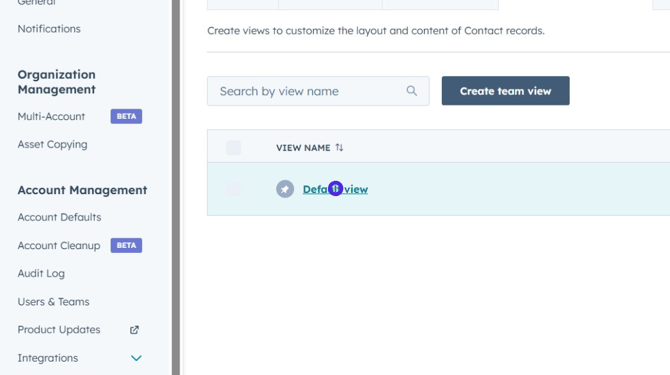
5. Open the Card Library
In the Edit layout view, click on the Card library tab on the right panel to browse available cards to add.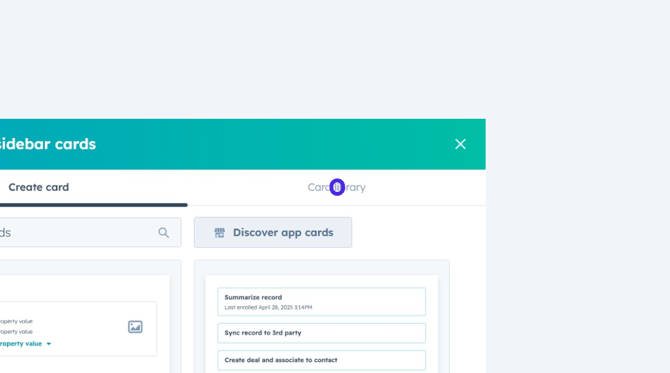
6. Add a New Card
Scroll through the card options in the library and click Add card under the section where you want the new card (in this case, below the Phonovation SMS section on the left panel).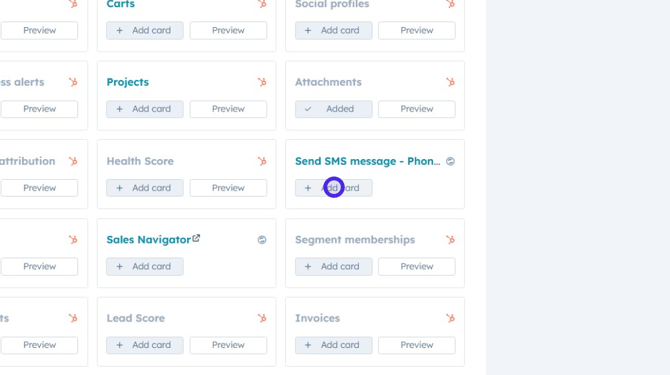
7. Close the Card Library Panel
Click the X icon in the top right corner of the Add right sidebar cards panel to close the library.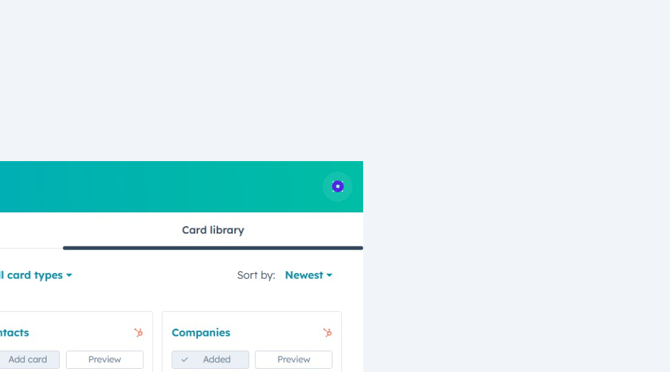
8. Review Changes in Record Editor
Review the contact record editor to confirm the layout changes and ensure the new or updated sections appear as expected, then press save and exit.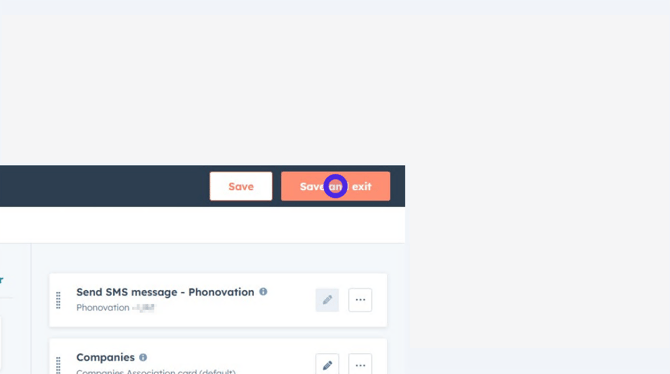
9. The Send SMS contact card will now appear when you view a contact.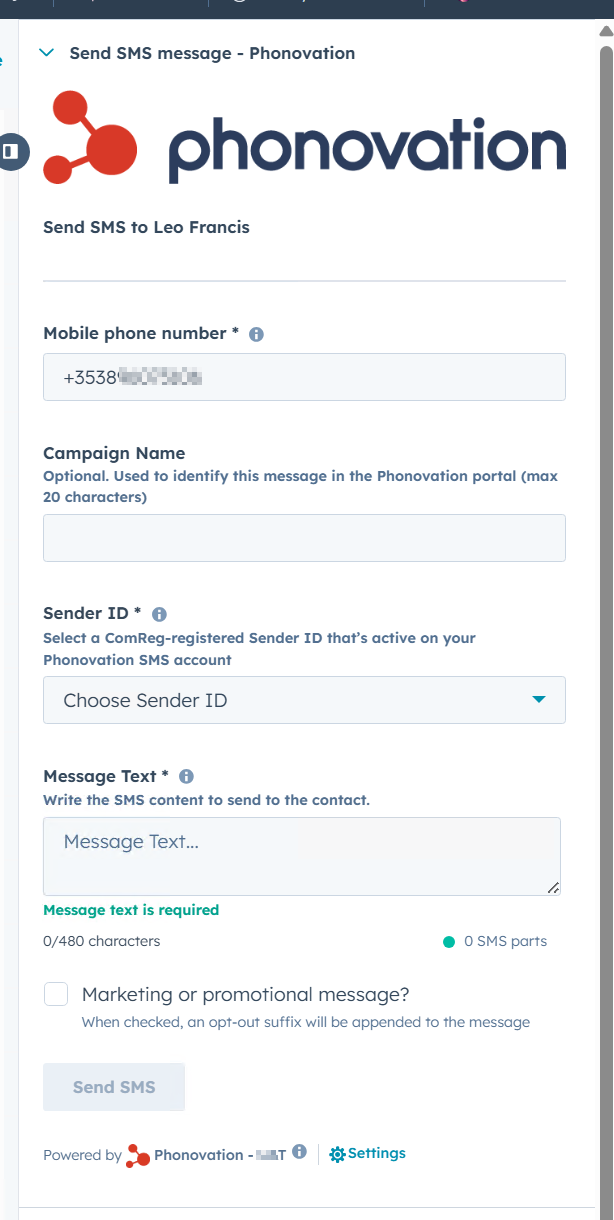
Sending your first message
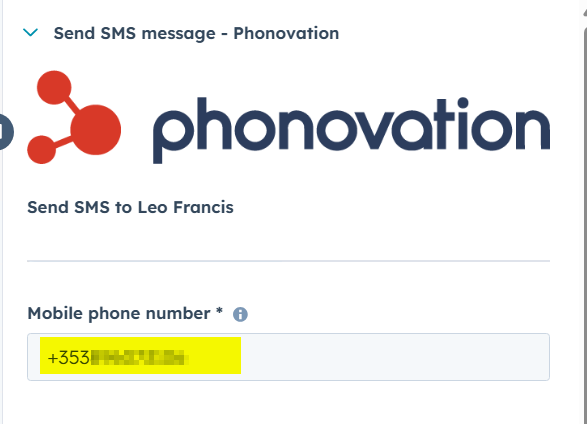
1. Double check the destination mobile is correct
You will see the Mobile Phone Number section is auto filled, this is pulled straight from your contacts "Mobile Phone" property on HubSpot, ensure this is correct before continuing.
2. Enter the Campaign Name
Input the desired campaign name into the Campaign Name text field.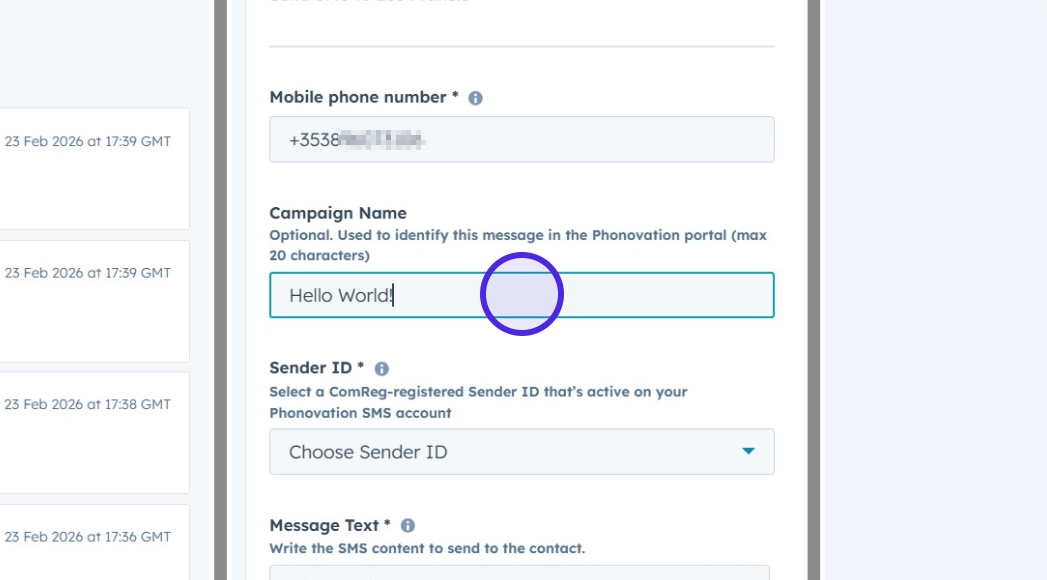
3. Select a Sender ID
Click on the Choose Sender ID dropdown menu. Select your desired Comreg approved SenderId from the list of available sender IDs.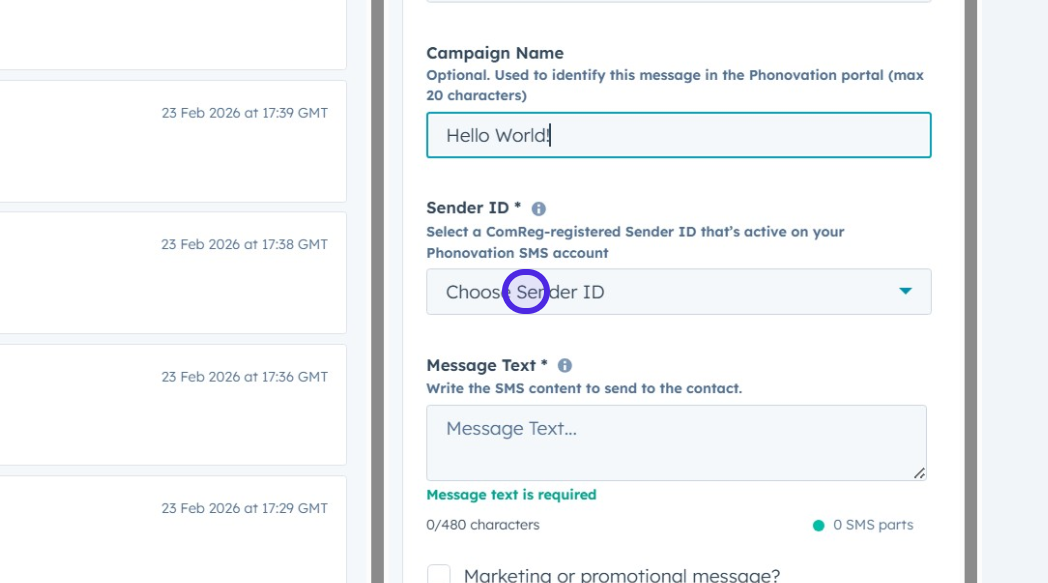
5. Enter the Message Text
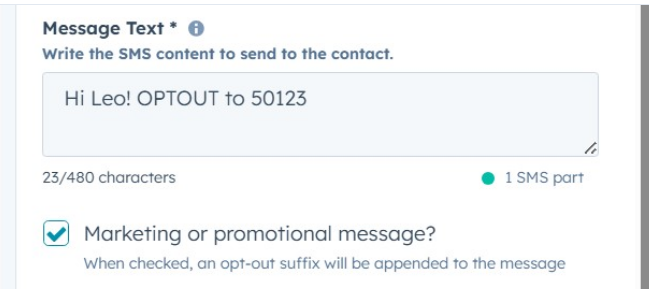
Type the content of the SMS message into the Message Text area.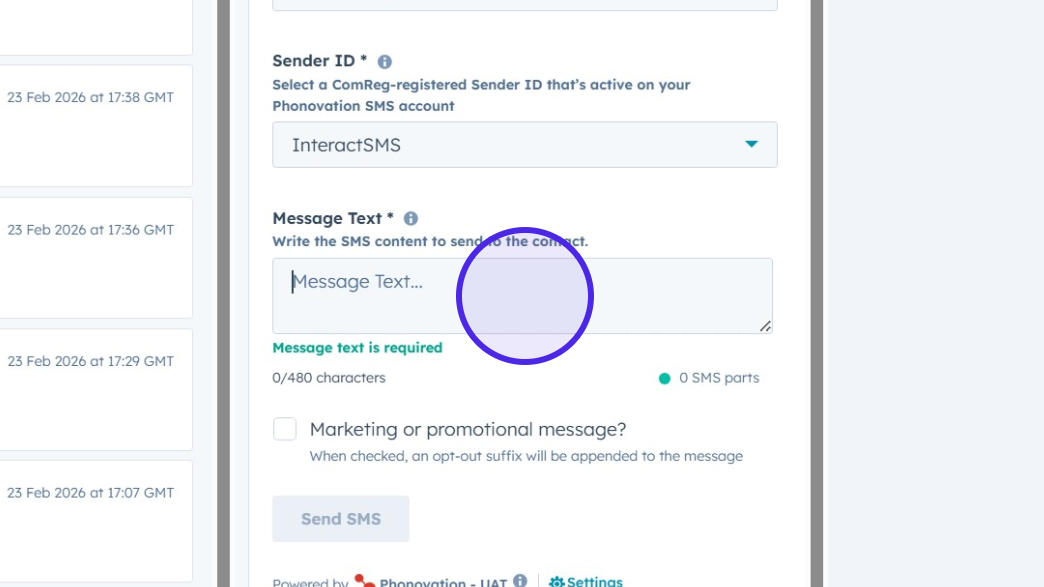
6. If needed, mark the message as marketing/promotional so opt-out text is included. (required for all marketing and promotional messages).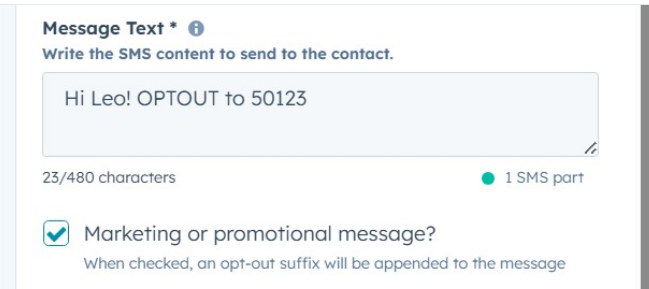
7. Send the SMS Message
Click the Send SMS button to send the message to the contact.