-1.png?width=300&height=50&name=Phonovation%20Logo%20(1)-1.png)
Steps
- Open the Phonovation integration in HubSpot and start a new SMS campaign.
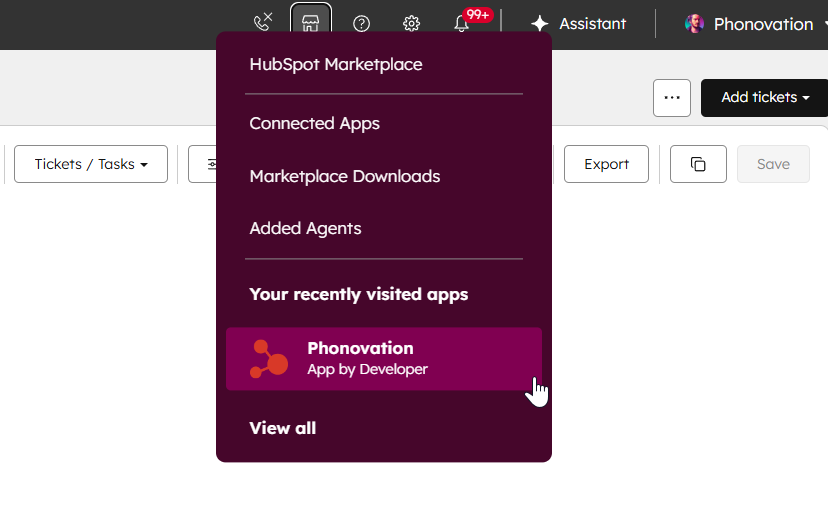
- Enter your Campaign name (This will be used to track your SMS messages on the Phonovation Portal)
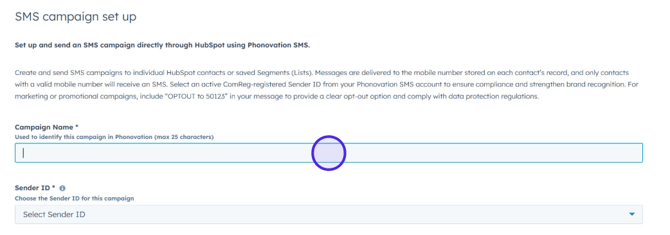
- Select an approved Sender ID that is available in the dropdown.
- Set recipient type to Contact.
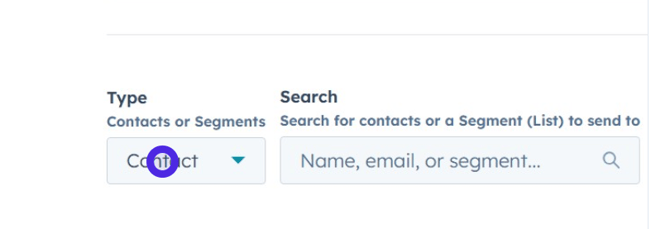
- Under Type, select from the dropdown menu if you want to send to selection of contacts or a segment (in this article we are focusing on contact)
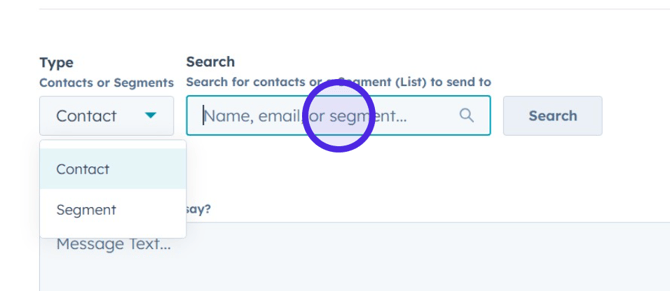
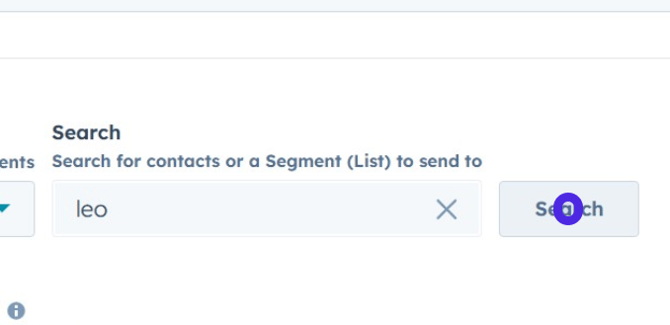
- Once you enter your contact into the search box and hit search
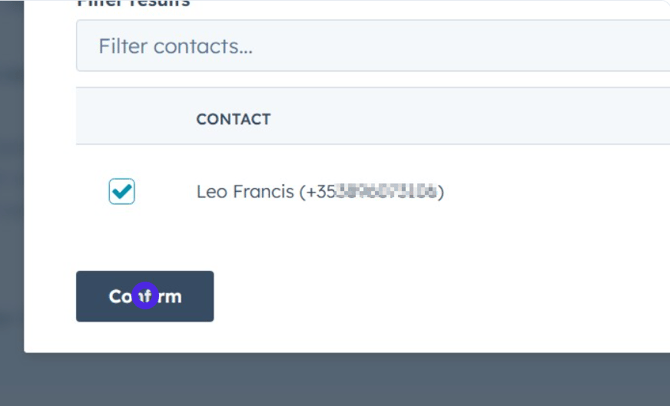
- Select the contact (example used: Leo Francis) using the checkbox of the contacts you wish to send to (you can select multiple if you wish)
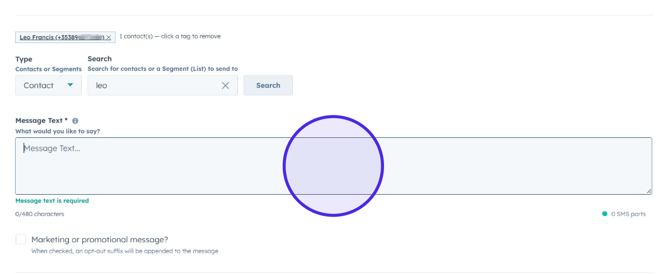
- Enter your SMS message text.
- If needed, mark the message as marketing/promotional so opt-out text is included.
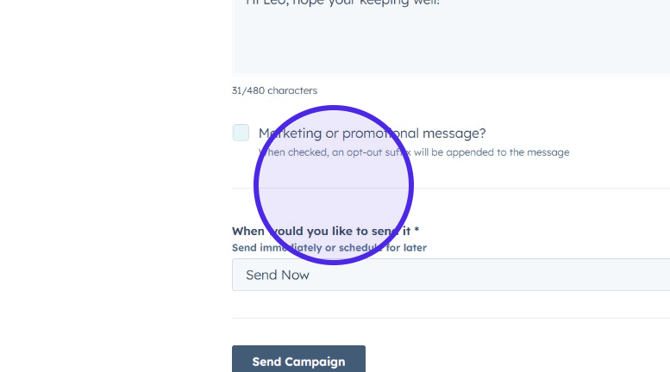
- Choose when to send. For immediate delivery, select Send Immediately. (You can also choose to schedule for future delivery)
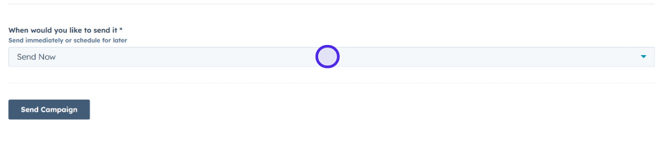
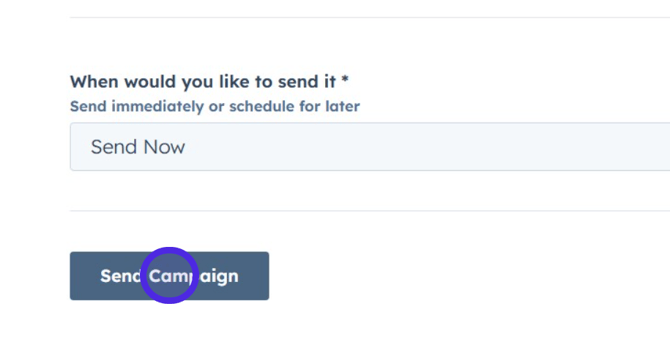
- Click Send Campaign to dispatch the SMS.
Once complete, you can then login to the Phonovation SMS portal to check on your campaigns performance and delivery results!