-1.png?width=557&height=93&name=Phonovation%20Logo%20(1)-1.png)
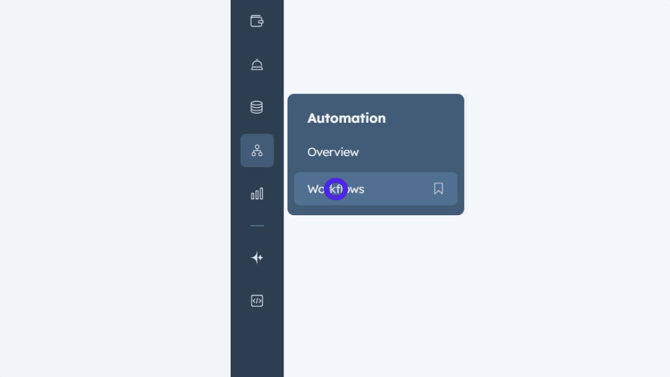
1. Navigate to Workflows
From the main HubSpot dashboard, click on 'Workflows' in the left navigation panel under the
'Automation' section.
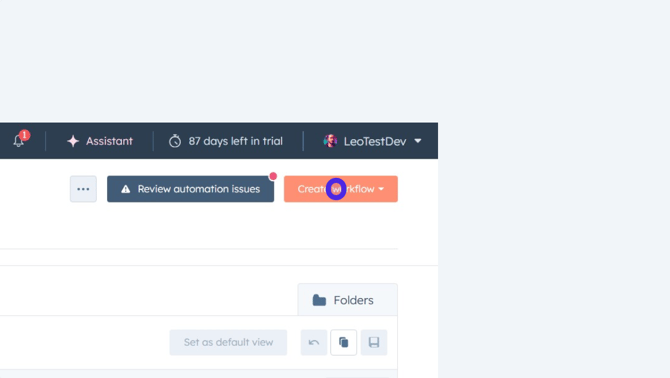
2. Create a New Workflow
Click the 'Create workflow' button in the top right corner of the workflows screen.
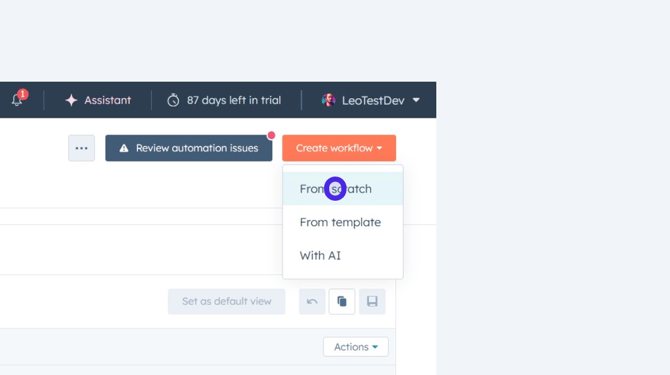
3. Start from Scratch
Select the option 'From scratch' to begin building a new workflow without using a template.
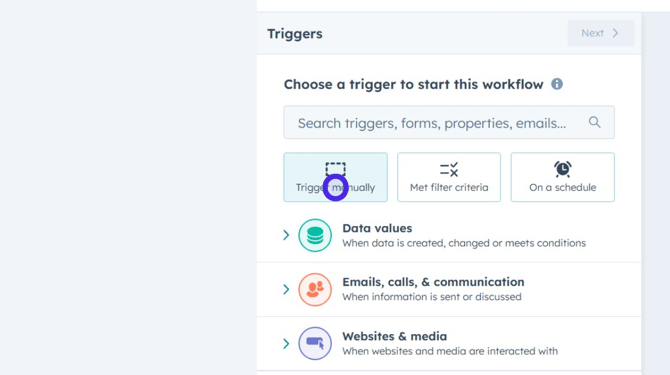
4. Select your trigger type
In the Triggers panel, choose 'Trigger manually' or your preferred trigger type.
5. Choose your preferred object trigger
Under the section 'Choose a type of record that can enrol', select 'Ticket' or your preferred trigger object for this workflow.
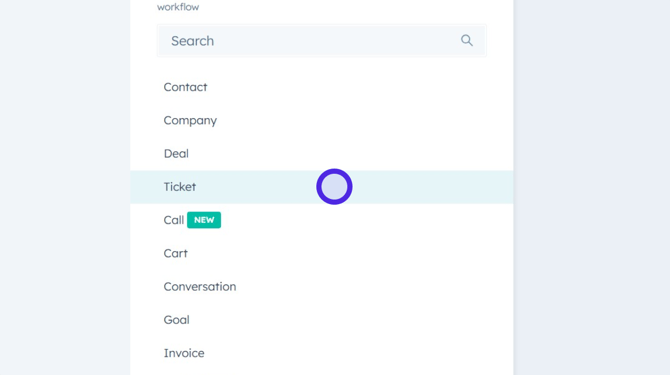
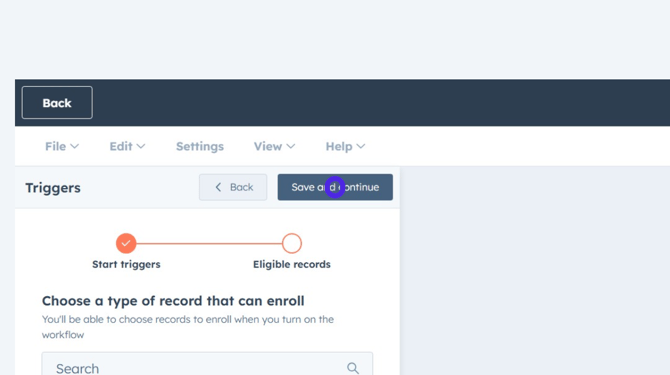
6. Save Trigger Selection
Click 'Save and continue' to confirm the trigger settings and proceed.
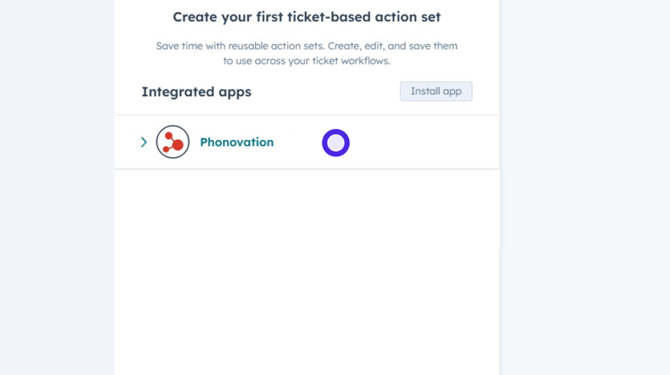
7. Add an Action
In the 'Choose an action' panel, locate and click on the 'Phonovation' integration.
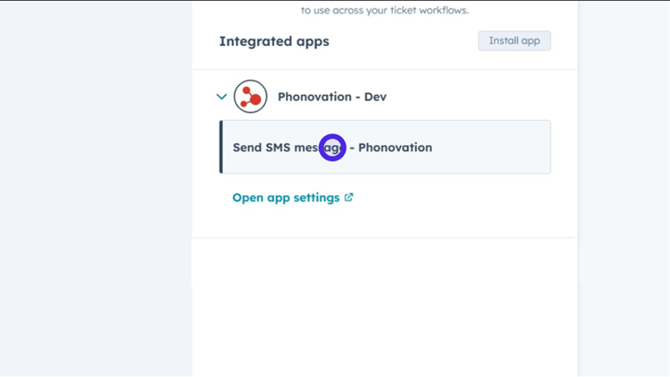
8. Send SMS message action
From the Phonovation integration options, select 'Send SMS message - Phonovation' to configure the SMS action.
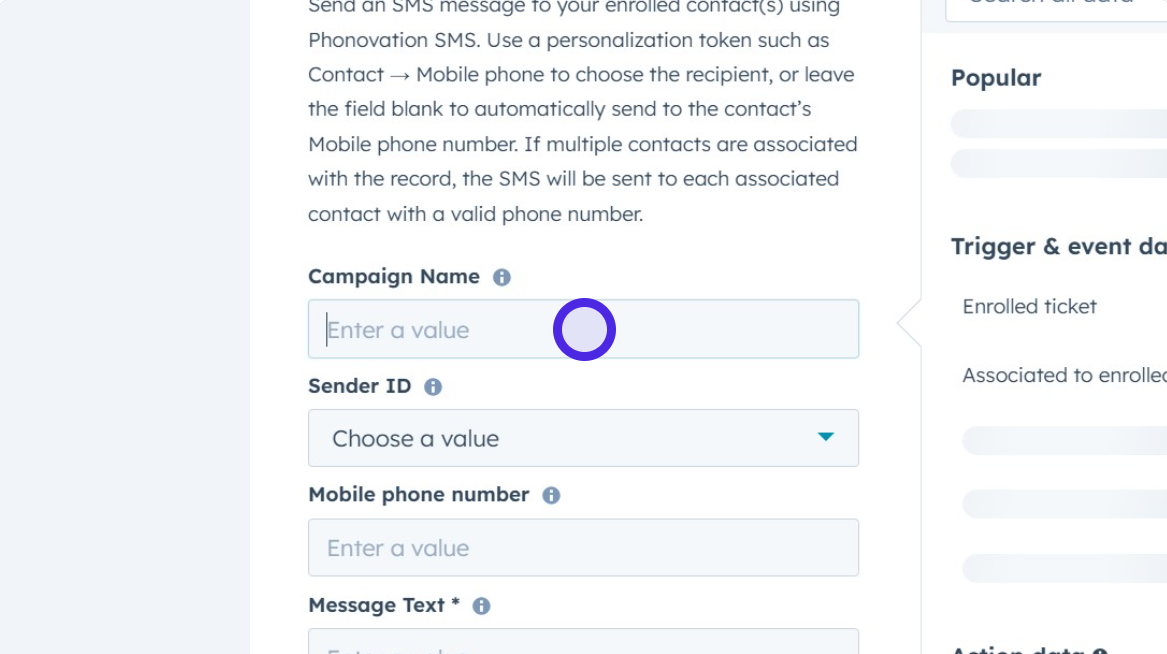
9. Set Campaign Name
Enter a value for the Campaign Name, this will help you view the after action campaign report in the Phonovation Portal.
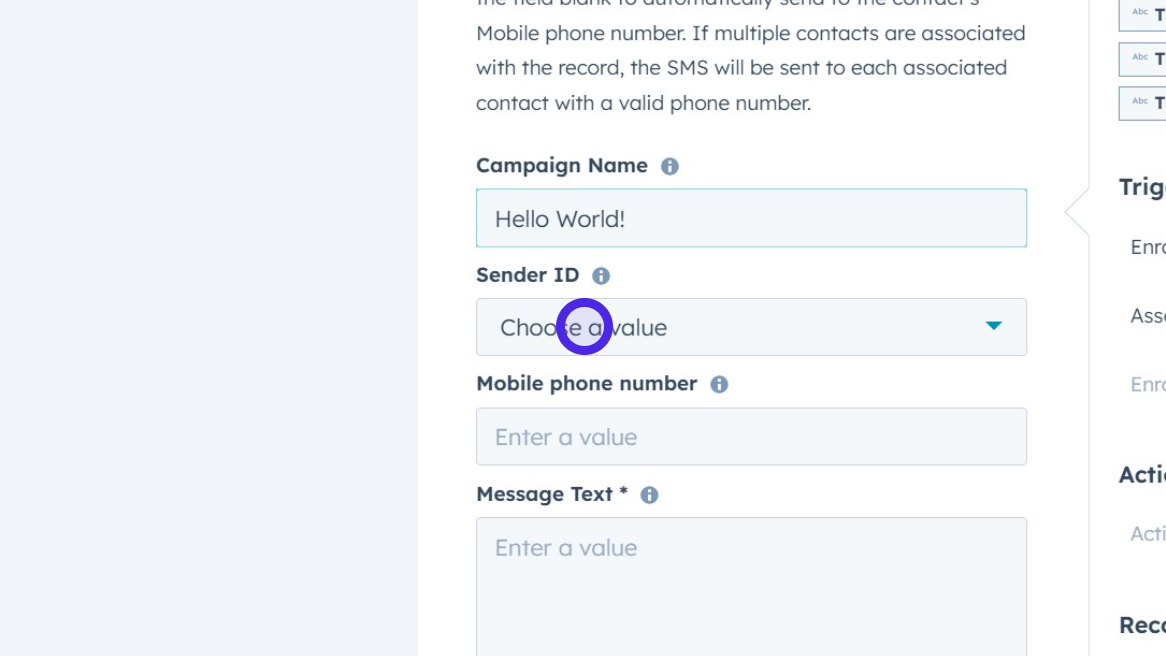
10. Select Sender ID Value
For the Sender ID , choose a Sender ID from the dropdown menu.
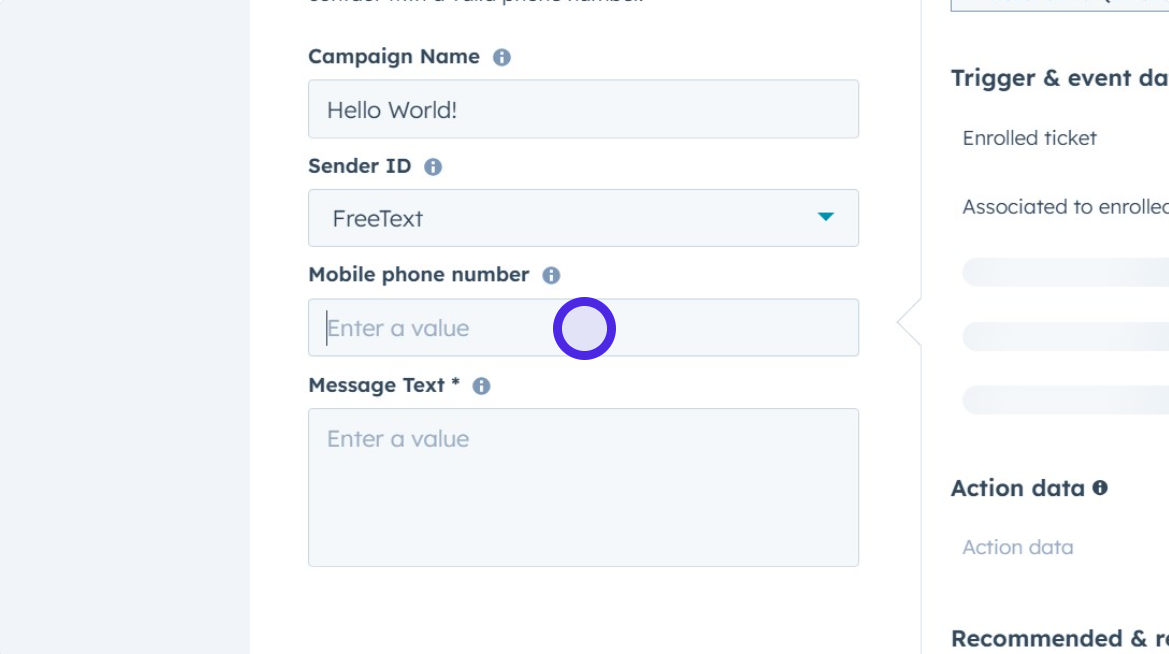
11. Set Mobile Phone Number Source
For the Mobile phone number, click on the input field next to 'Mobile phone number' to open the data token selector.
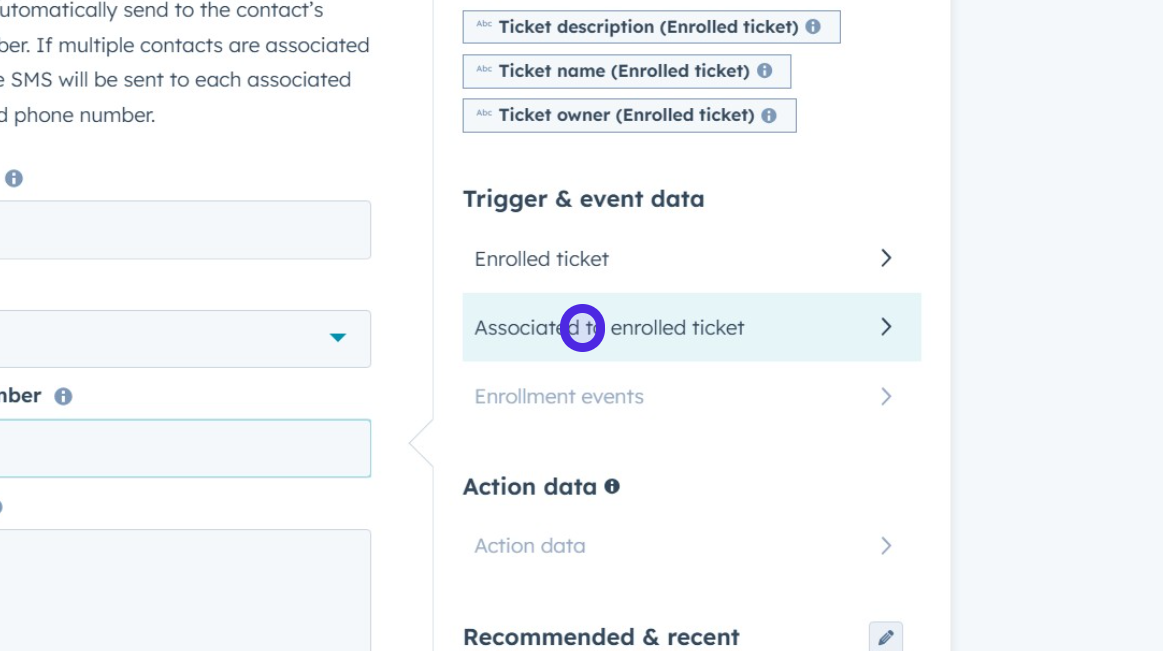
12. Filter Data by Association
In the data tokens panel, expand the 'Associated to enrolled ticket' section.
13. Select Contact Data
Within the associated object data, click on 'Contact' to access contact-related properties.
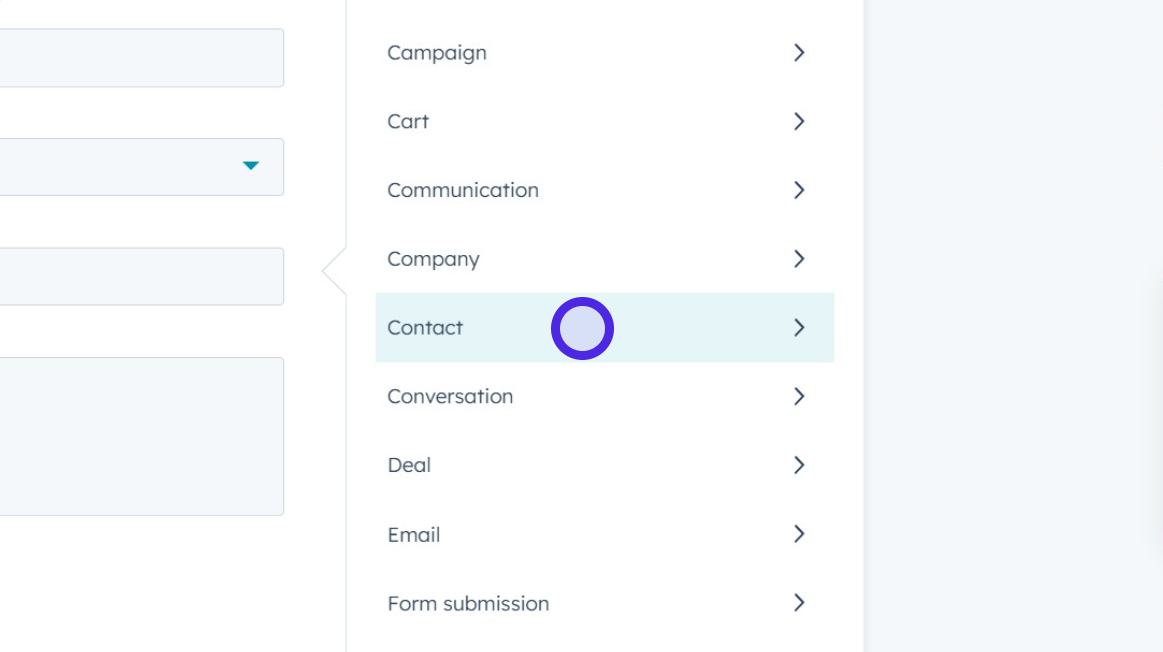
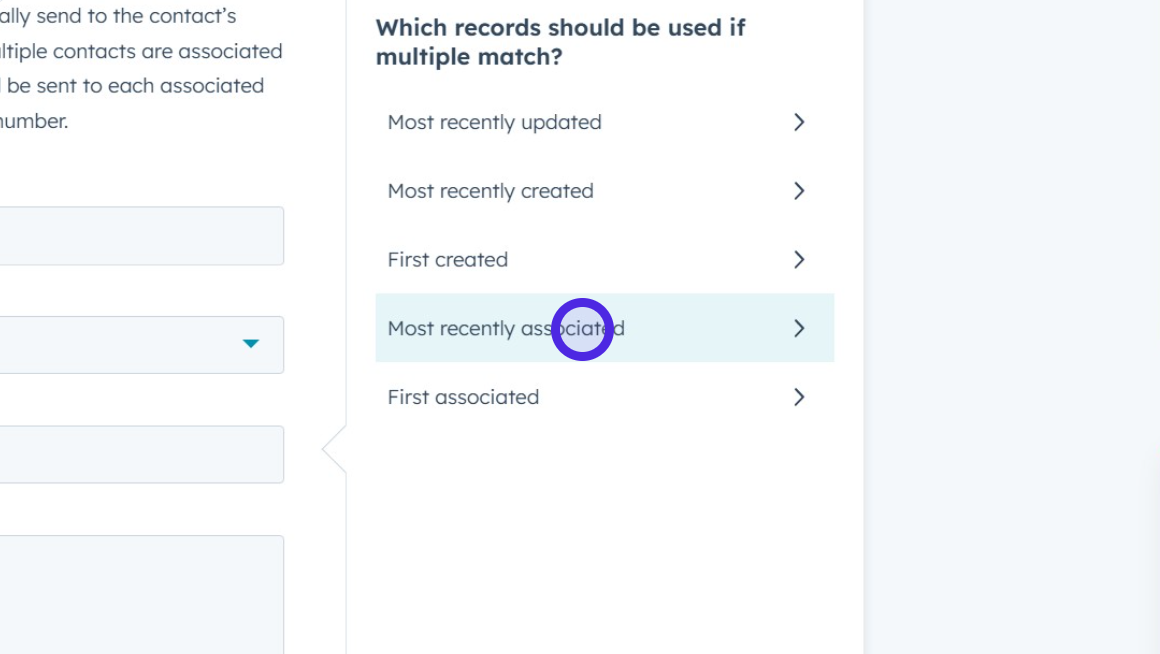
14. Choose Association
Select 'Most recently associated' or your preferred record option under the 'Which records should be used if multiple matches?' heading.
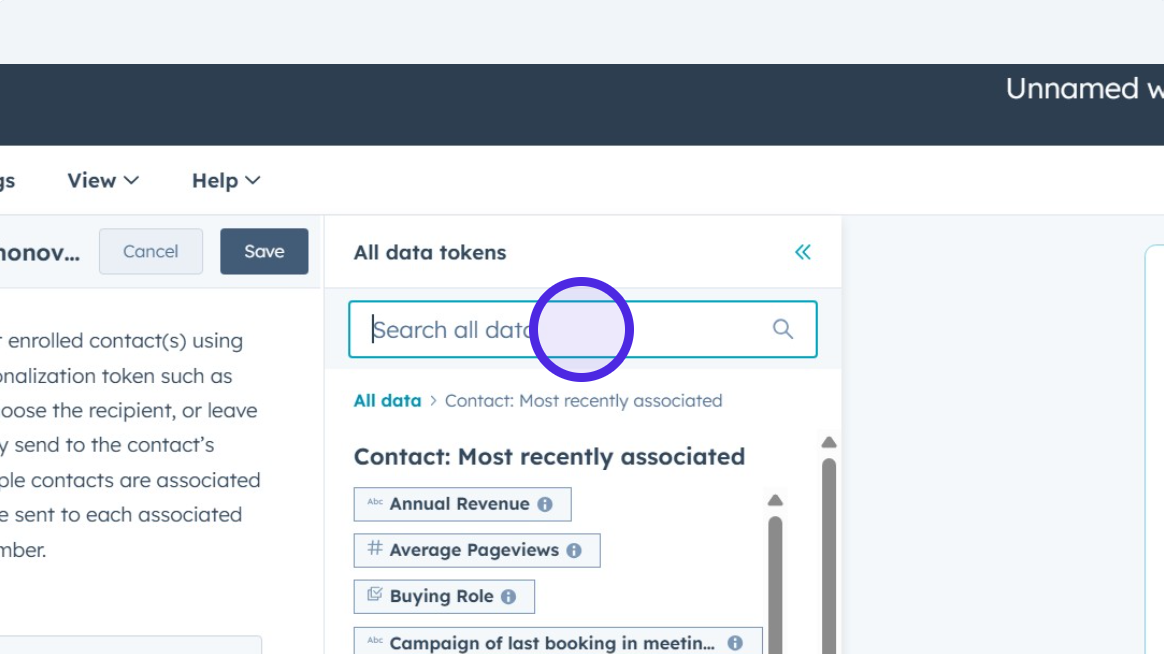
15. Search for Mobile Phone Number
Use the search bar in the data tokens panel to search for 'mobile phone'.
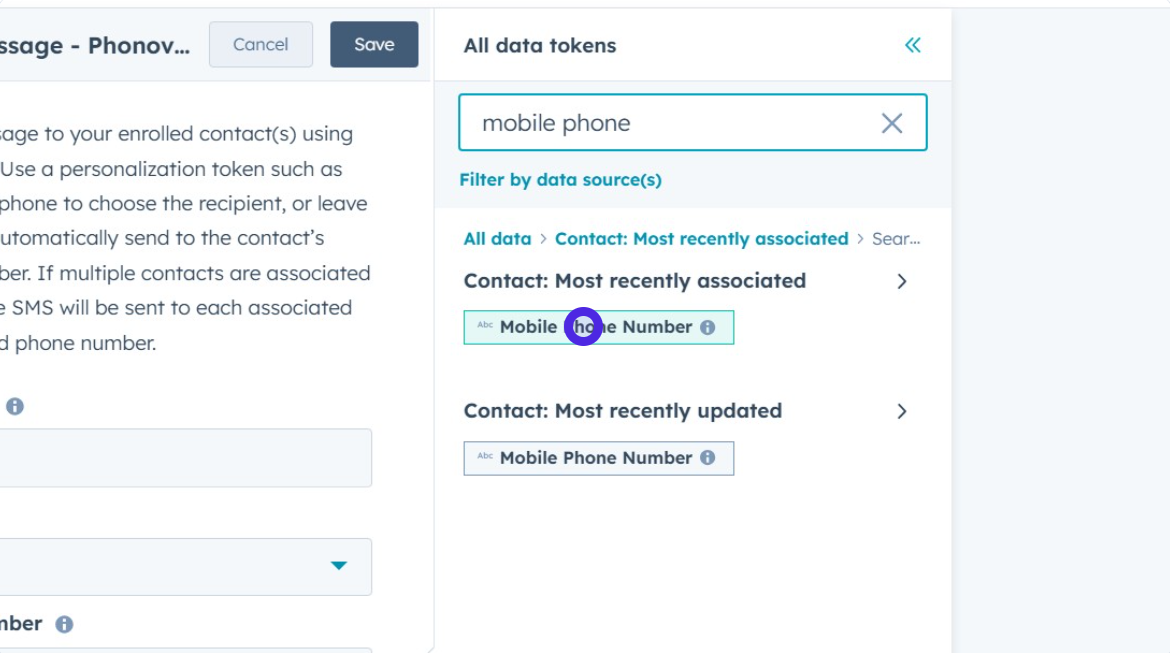
16. Select Mobile Phone Number Token
Click on the 'Mobile Phone Number' token from the search results to insert it into the 'Mobile phone number' field.
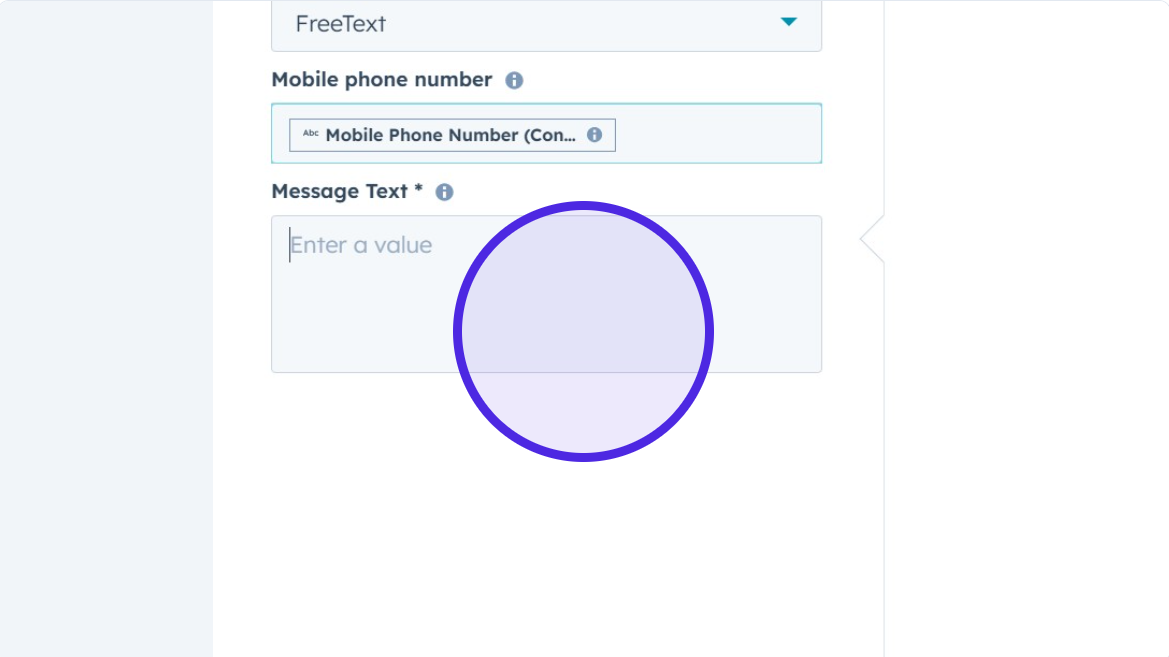
17. Enter SMS Message Text
Input the desired text for the SMS message into the 'Message Text*' field.
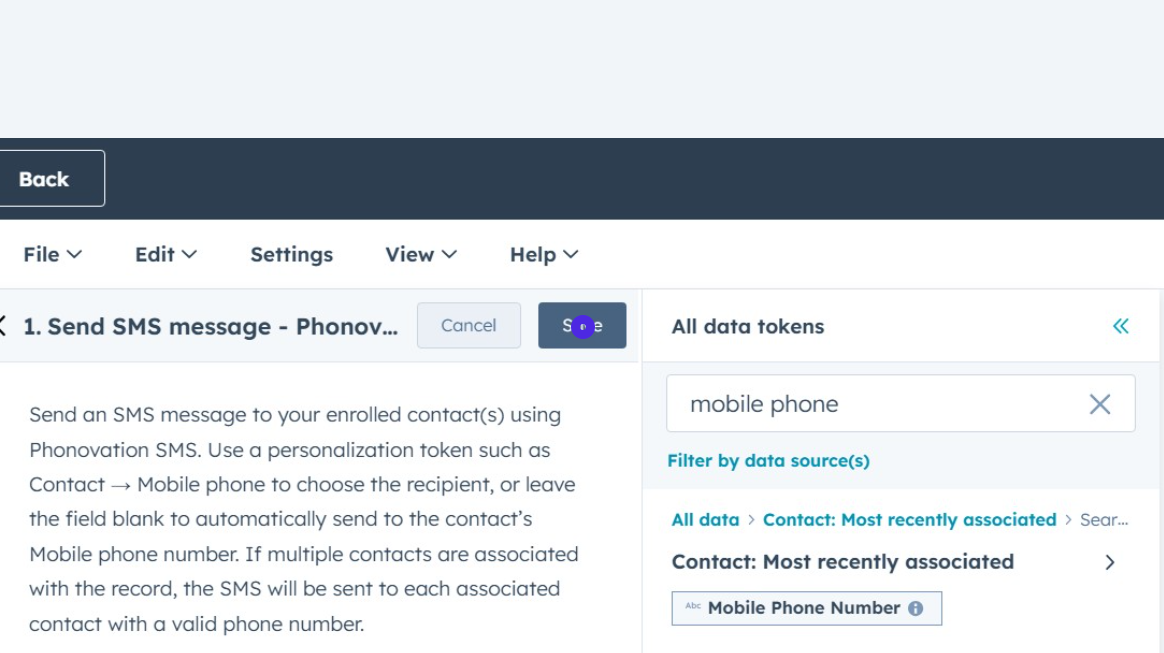
18. Save Action
Click the 'Save' button to finalize the configuration for the 'Send SMS message - Phonovation' action.
19. Publish workflow
Once configured and saved, your Send SMS action will run every time your automation is triggered. Make sure when you publish, you select "No, only enroll tickets who meet the enrolment criteria after the workflow is turned on". This ensures your SMS messages will only trigger to send anytime is workflow is trigger and wont trigger for anything that previously met your trigger criteria.